

App-based Workflow Step
App-based workflow steps become available after you install specific apps from the Crowdin Store or add private apps to your Crowdin Enterprise organization. These steps can provide specialized functionality like AI-driven proofreading, delayed processing, etc., and are a powerful way to tailor workflows to your team’s exact needs. By adding them to your workflow, you expand Crowdin Enterprise’s default capabilities with unique conditions, automation, and integrations.
Unlike built-in steps, an app-based step defines its own completion rules: the app decides when strings are complete on the step and which output moves them to the next workflow step.
Below are a few examples of how app-based steps can enhance your workflows. Some are drawn from existing Crowdin Store apps, while others illustrate broader possibilities:
-
Workflow Delay – The Workflow Delay app adds checkpoint-style steps that pause strings until conditions are met or on a set schedule. This helps prevent incomplete or unverified strings from moving forward prematurely, improving overall translation consistency.
-
AI Source Review – Another possible scenario could be an app that automatically reviews and refines source text before translation, catching typos, style inconsistencies, or placeholders that might cause issues later. This approach helps ensure higher-quality translations by starting with well-polished source strings.
-
AI Labeling – A step that could analyze your strings and automatically apply labels (for example, “Marketing Content”, “Technical Doc”, “High Priority”), helping route content to the most appropriate translation or review paths.
Before you can add an app-based workflow step, you need to install the corresponding app. You can install apps from the Crowdin Store or, if you’ve developed your own, add it as a private app.
Read more about Creating Workflow Step Apps.
Depending on the app, you may need specific permissions (for example, Manager or Admin) to install it. Once installed, the new step types appear in your workflow editor or workflow template editor.
Read more about Installing Crowdin Apps.
When you install an app that provides workflow steps, Crowdin Enterprise creates a dedicated bot user that represents the app in your organization. The app processes strings on its workflow steps on behalf of this user, so its actions are attributed to the bot in the project activity.
The bot must have manager access to every project where the app-based step is used:
- In the app installation dialog, select Assign bot as a manager to all existing projects.
- Otherwise, invite the bot to the project as a manager when you add the app-based step to that project’s workflow.
If the bot’s manager access is revoked, the step fails validation and you can’t publish the workflow, so the step stops processing strings. Keep the bot in the project members with the Manager role. When the app is uninstalled, the bot user is removed automatically.
Adding App-based Workflow Steps to Your Workflow
Section titled “Adding App-based Workflow Steps to Your Workflow”You can add app-based workflow steps directly to a project’s workflow in the workflow editor or include them in workflow templates via the workflow template editor.
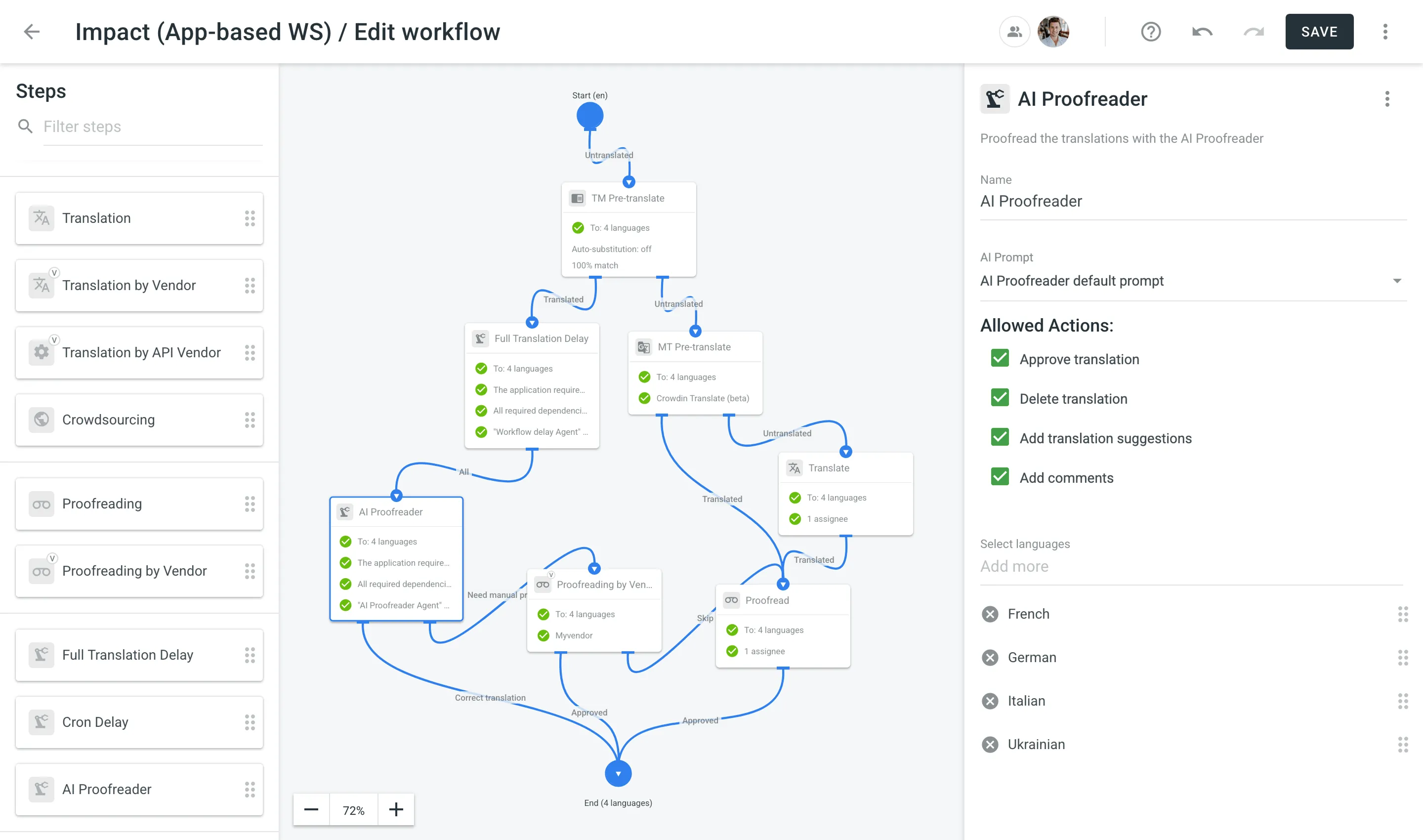
Depending on how the app is implemented, an app-based workflow step may offer various configuration options, or none at all. For example:
-
Configurable Steps – Some steps allow you to adjust parameters in the workflow editor (for example, specifying a delay for content processing). In these cases, you can modify the available options to suit your needs.
-
Pre-configured Steps – Other steps have all their settings predefined by the app (for example, delaying content until an entire file is fully translated), so no additional fields appear in the workflow editor.
If a step provides configuration fields, they typically appear in the step’s settings panel once you drag it into the workflow.
These fields can include anything from AI prompts and allowed actions (for example, approving or deleting translations, adding translation suggestions or comments) to API tokens, delay intervals, or match conditions, whatever the app developer has enabled. If there are no visible configuration options, the app likely manages all necessary setup internally.
When an app-based step is misconfigured, Crowdin Enterprise flags the workflow as having issues. You may notice:
- Error Banners and Inactive Steps – If the app is removed or becomes inactive, your project’s Dashboard may display a banner informing about the workflow issues with instructions on how to resolve them.
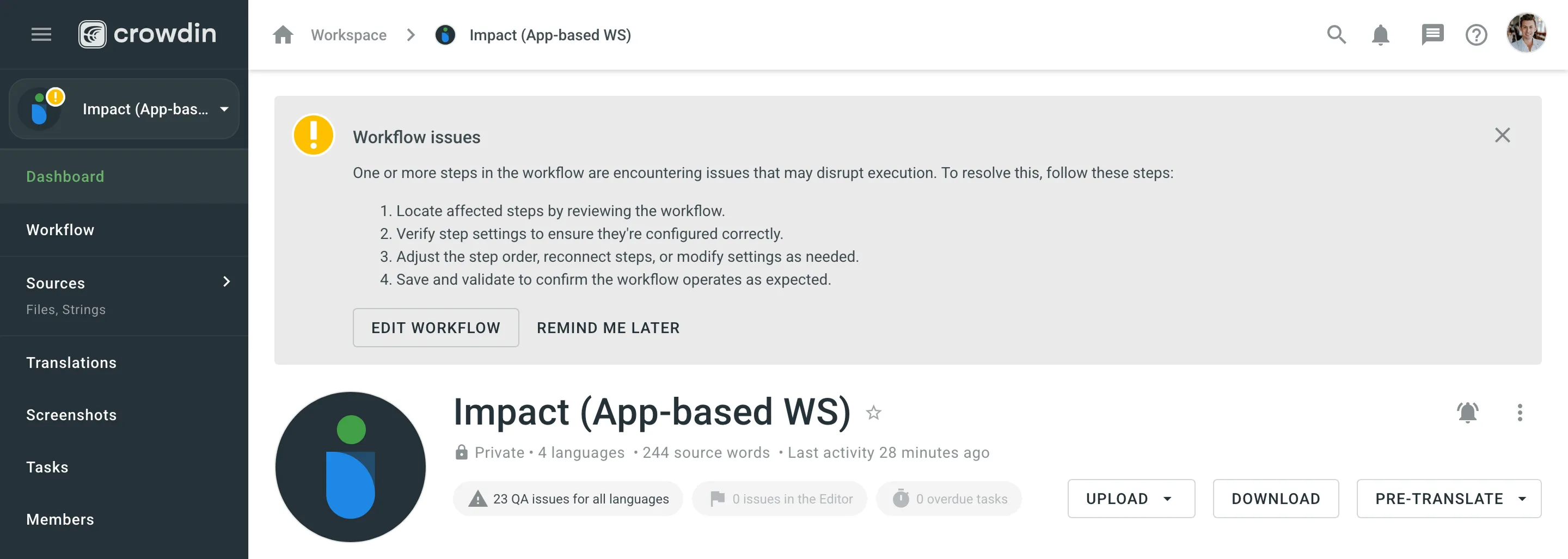 In the workflow editor, you may see steps with failed validations (for example, The application required for this step type is uninstalled or not allowed for the project). To fix this, reinstall the app and reconfigure its step, or remove the step if it’s no longer needed.
 - Validation Warnings – When saving changes to the workflow, a warning might appear if the app-based step is misconfigured or has unmet dependencies (for example, “Workflow Delay Agent” requires manager permissions for the project). Such a warning usually means that the app’s bot user lost manager access to the project – re-add the bot to the project members with the Manager role.
- Failed Strings on the Step – If the app couldn’t be notified about strings that reached its step (for example, the app’s service was temporarily unavailable), those strings are counted as failed words on the step. The step then shows a warning with the number of failed words. Once the app is available again, a project manager can click Resend on the step to send those strings to the app again.
- No Access to the App-based Step – Occasionally, an app-based step may not appear in the workflow editor if the app was installed with limited project access or if you lack the required role (for example, Manager). Check your project settings to confirm you have Manager or Admin rights and that the app is allowed in the intended project.
- Connectivity or External Service Errors – If an app-based step relies on a third-party service or API, timeouts or network failures may cause the step to fail or get stuck.
- Check Service Status: Verify that any external service used by the app is online and functioning properly.
- Inspect Logs: If the app provides logs or an admin panel, review any error messages it may have generated.
- Network & Firewall Settings: Verify that your firewall or VPN isn’t blocking the app’s requests.